PacketCircle Linux and Windows — User Manual
The native Linux and Windows desktop app of PacketCircle Native: conversation topology, live capture, native Decode and one-click handoff to Wireshark — built on the same Rust core as the Mac app.
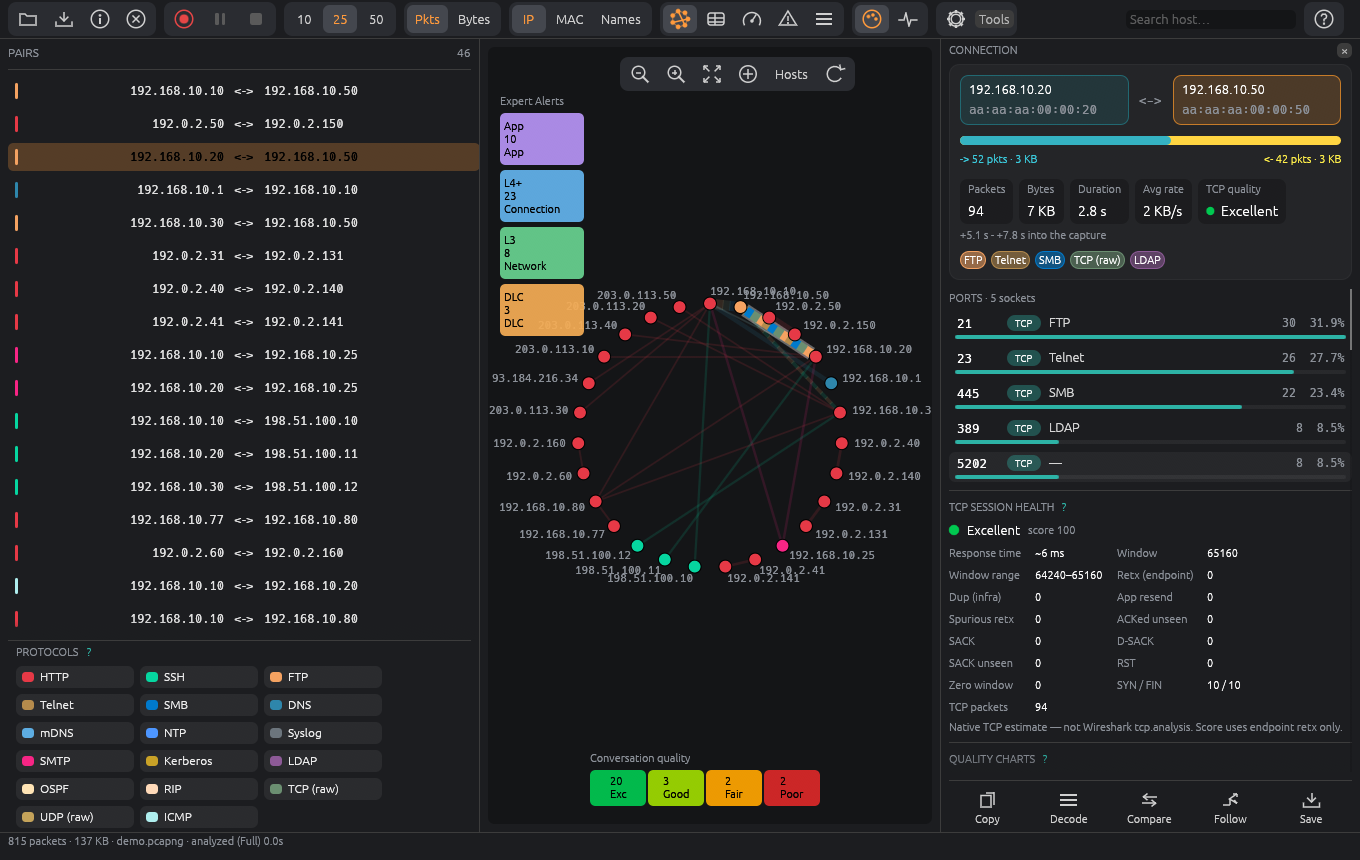
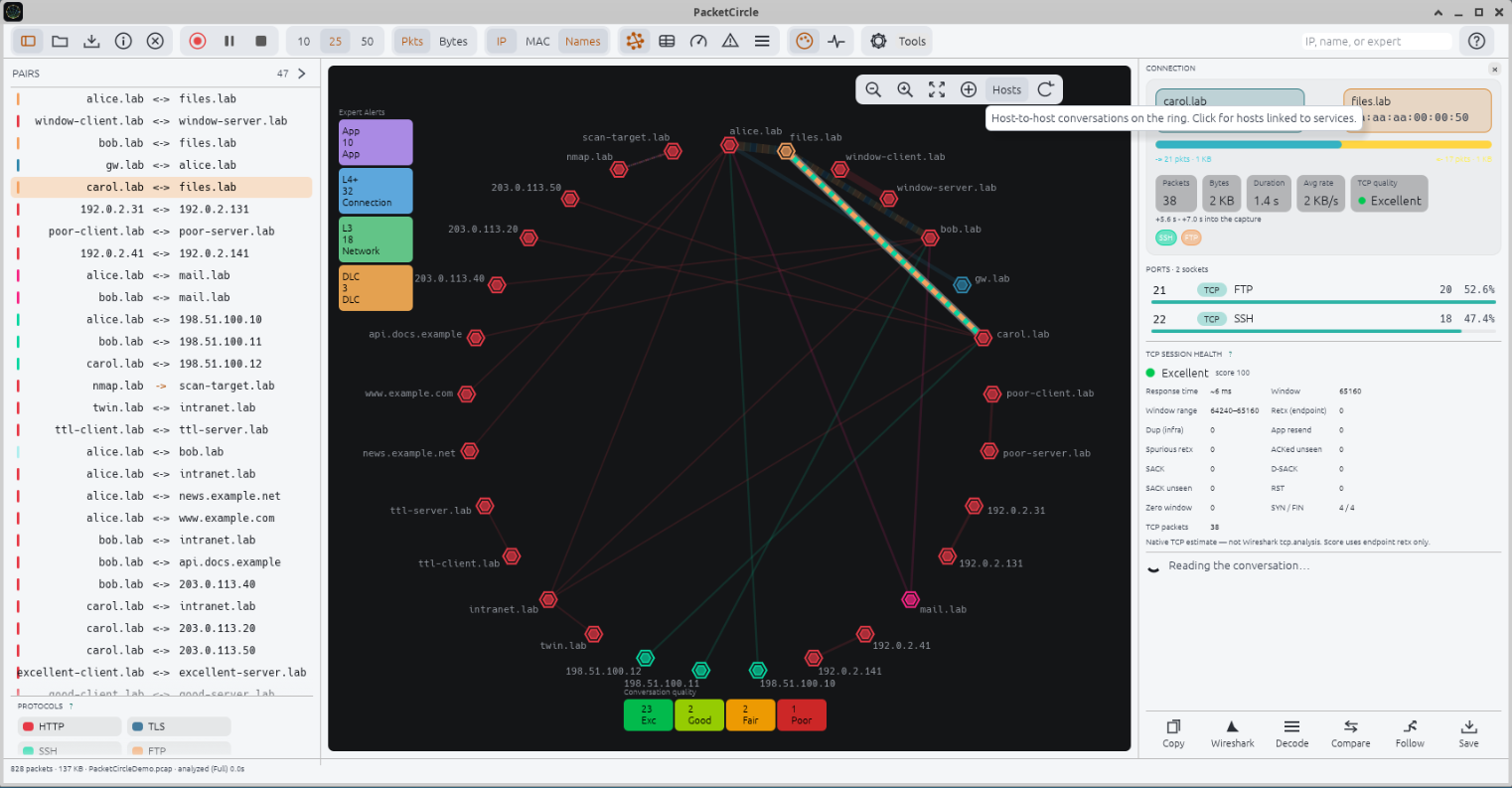
The Linux app with the demo capture: pairs list, Circle with Expert Alerts and quality chips, and the connection pane.
1. Background and motivation
PacketCircle Linux is the desktop app of PacketCircle Native for Linux. Since 1.3 all packet logic — readers, dissection, conversation analysis, TCP quality and Expert — lives in one Rust core. The Mac and iOS apps put a SwiftUI interface on it; the Linux and Windows apps put a native Rust interface on it. A capture therefore gives the same Circle, the same grades and the same Expert findings on every platform.
What it is
A capture visualizer built around conversation topology (the circle), a sortable conversation table, rate and quality gauges, an Expert Alerts page and a native packet Decode window. Open a PCAP, PCAPNG, gzip-compressed capture or Sniffer Pro file, or capture live from an interface. Free of charge and unlimited — no ads, no in-app purchases, no telemetry. Not open source (yet): built with the GPL in mind, but not published under GPL-2.0 today after the complete re-architecture; the sources will be released as soon as I feel comfortable, and if your organization wants to see them before that, just ask. Everything is analyzed on your machine; nothing is sent anywhere.
What it is not
PacketCircle is not a desktop Wireshark. It contains no Wireshark / libwireshark code. Decode is native and best-effort: solid IP/TCP/UDP detail and some application-layer recognition, not dissector-for-dissector parity. TCP session-quality grades are a native heuristic, labelled “not Wireshark tcp.analysis” wherever shown. When you need full dissector depth, Send to Wireshark hands the capture off with the display filter ready.
2. Requirements and installation
Linux: Ubuntu 24.04 or newer on x86_64 or aarch64. The same build runs on other distributions with a glibc at least as new as Ubuntu 24.04’s (2.39): Fedora 40+, Debian 13+, Arch, openSUSE Tumbleweed. Musl systems such as Alpine are not supported. You need a desktop session with a working graphics driver (Vulkan or OpenGL).
2.1 What you download
The download is one .zip (packetcircle-…-x86_64.zip, about 50 MB) with all of the files below plus a short readme. Unzip it and use the installer you prefer:
| File | What it is |
|---|---|
packetcircle-<version>-linux-<arch>.run | Self-extracting installer: checks the machine, verifies the signature, installs |
packetcircle-<version>-linux-<arch>.tar.gz | The same files as an archive (./install.sh inside) |
packetcircle_<version>_amd64.deb / arm64.deb | Debian / Ubuntu package: sudo apt install ./packetcircle_….deb |
SHA256SUMS-… and *.asc | Checksums and detached GPG signatures of every file |
2.2 Install
unzip packetcircle-*-x86_64*.zip
sh packetcircle-*-linux-x86_64.run     # inside the unzipped folder
The installer asks whether to install for this user (~/.local, no root) or for everyone (/usr/local). It checks the CPU architecture, the C library, the graphics / windowing / libpcap libraries (and names the packages to install on Debian/Ubuntu/Mint, Fedora/RHEL, Arch and openSUSE), verifies the SHA-256 sums and the GPG signature against the pinned release key, then installs the program, a menu entry, the icon, the capture helper and an uninstaller.
| Command | What it does |
|---|---|
sh ….run --check | Only check this machine (CPU, glibc, libraries, signature); installs nothing |
sh ….run --user | Install into ~/.local, no root |
sh ….run --system --install-deps | Install into /usr/local for everyone and install missing packages (apt / dnf / pacman / zypper) |
sh ….run --capture | Also allow live packet capture (see §11) |
packetcircle-uninstall [--purge] | Remove everything that was installed; --purge also removes your settings |
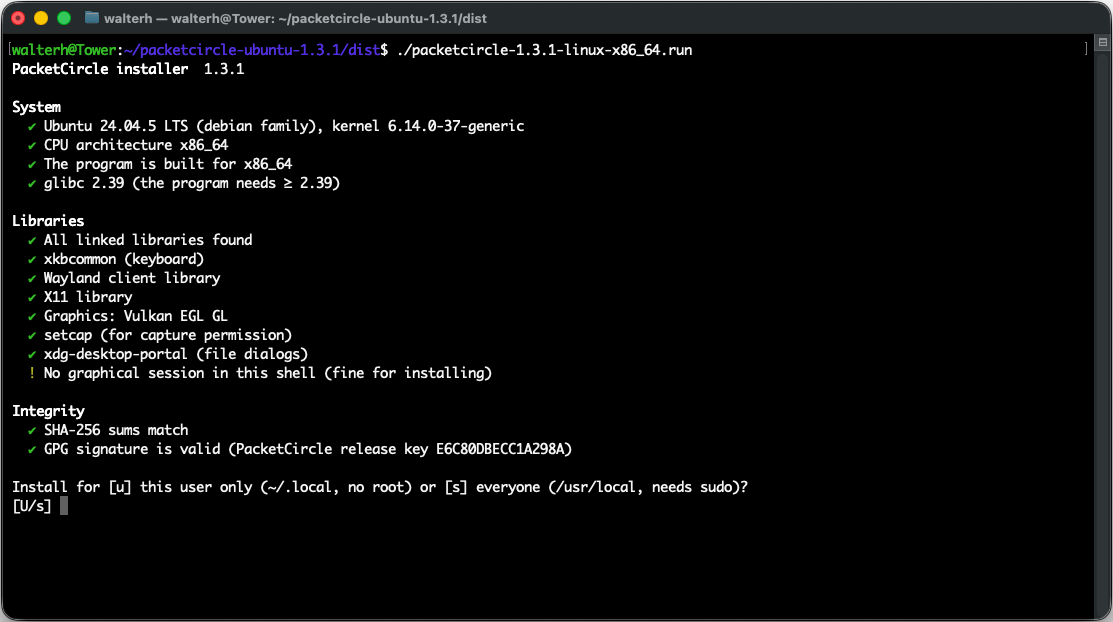
The installer checks the system, libraries and integrity (SHA-256 sums and the GPG signature) before it asks where to install.
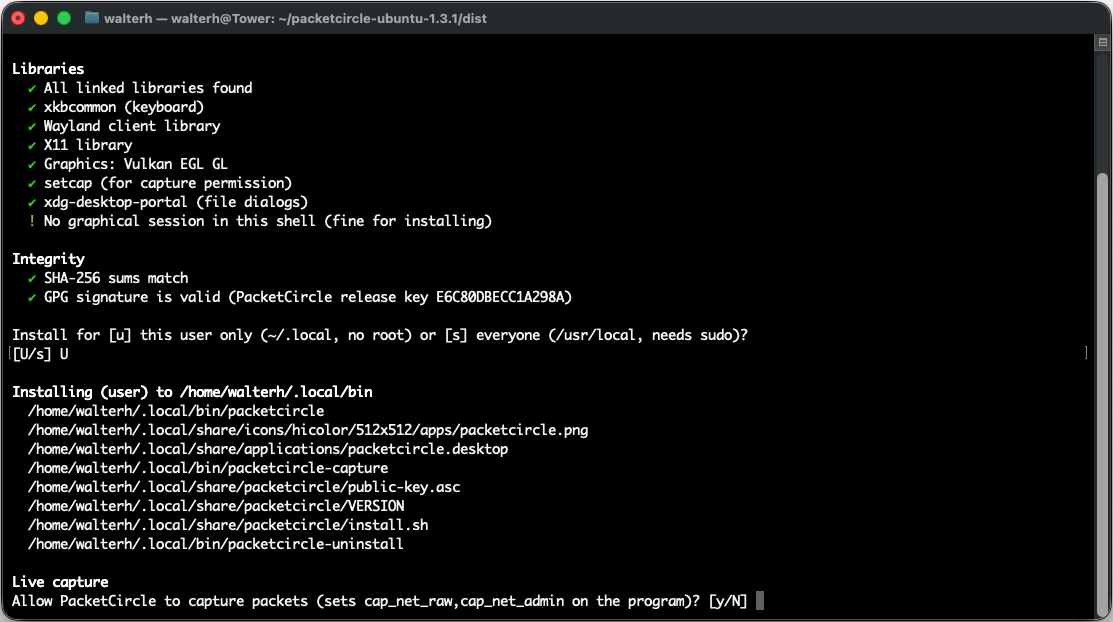
A user install writes to ~/.local, then asks whether PacketCircle may capture packets (setcap).
Release files are signed with the PacketCircle release key (fingerprint 861C D064 58D7 CE58 CB42 B5C2 E6C8 0DBE CC1A 298A). To verify by hand: gpg --verify <file>.asc <file>.
2.3 Run
Start PacketCircle from the application menu, or from a terminal: packetcircle capture.pcapng. You can also drop a capture file onto the window.
2.4 Windows
The Windows app is the same build as the Linux app: the same Rust core, the same egui interface, the same features. Only installing, uninstalling and live capture differ.
Download: Windows installer (.msi in a .zip) → — about 7.5 MB, 64-bit Windows (x64). Unzip it and double-click the .msi.
Code signing: the installer is signed by WLAN GEEKS LLC. Many thanks to Kevin there, who builds great tools for WLAN troubleshooting, for signing the app and the installer: I have developer certificates for Apple (iOS / macOS), but I do not own a Windows code-signing (OV) certificate yet. If I see that people use PacketCircle, which drives new features and fixes, I will certainly buy one. A signed installer shows the signer as the publisher; because the app is new, Windows may still ask for confirmation — choose More info and then Run anyway only for an installer downloaded from this site.
The installer is a standard setup wizard. If Windows warns you, choose More info and then Run anyway — only for an installer downloaded from this site.
- Welcome. The wizard names the version and build it installs. Click Next.
- Destination folder. The default is
C:\Program Files\PacketCircle\. Click Change… to choose another folder, then Next. - Npcap notice. If Npcap is not installed, the wizard tells you so. You can use every PacketCircle feature without it, but you cannot capture from a network card. PacketCircle installs either way.
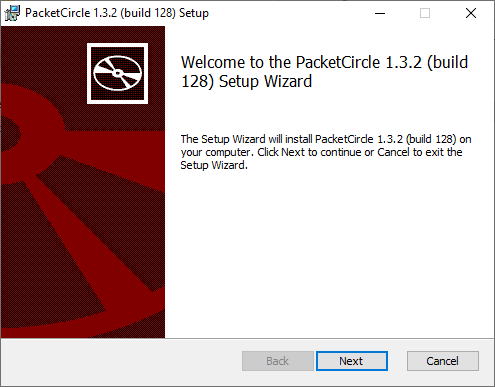
The Windows setup wizard names the version and build it will install (here 1.3.2, build 128).
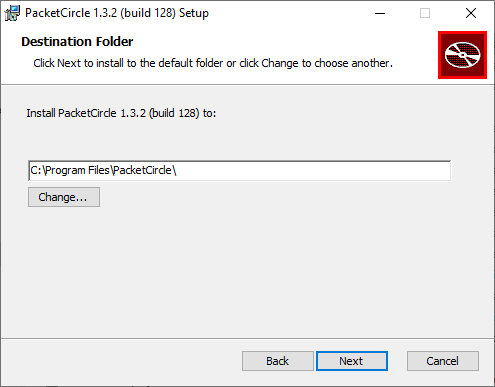
Destination folder: the default is C:\Program Files\PacketCircle\, and Change… lets you pick another one.
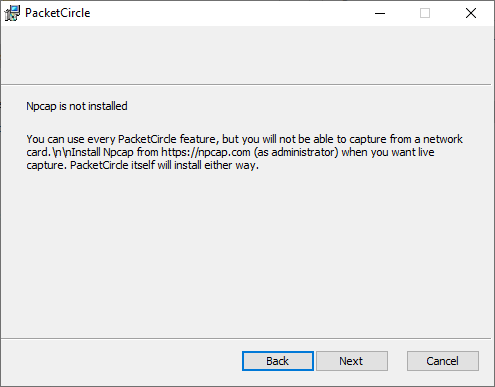
Without Npcap everything works except live capture from a network card; install it from npcap.com (as administrator) when you want it.
Uninstall. Remove PacketCircle like any other installed Windows app: Settings → Apps → Installed apps → PacketCircle → Uninstall. On Linux the equivalent is packetcircle-uninstall (see 2.2).
2.5 Linux and Windows at a glance
| Topic | Linux | Windows |
|---|---|---|
| Interface and features | Rust / egui | Same |
| Install | .run installer, .tar.gz or .deb | Setup wizard (default C:\Program Files\PacketCircle\) |
| Uninstall | packetcircle-uninstall [--purge] | Settings → Apps → Installed apps |
| Live capture | libpcap and setcap (see §11) | Npcap, optional, installed as administrator |
| Integrity | SHA-256 sums and GPG signature | Installer code-signed by WLAN GEEKS LLC (see 2.4) |
| Availability | Download on this site | Download on this site |
3. Getting started
| Step | Action |
|---|---|
| 1 | Start PacketCircle. The start screen offers Open Capture…, Capture…, Demo Mode, Settings… and Help & About…, plus your recent captures. |
| 2 | Open a PCAP, PCAPNG, gzip or Sniffer Pro file (or drop it on the window), or try Demo Mode. |
| 3 | Explore Circle, Conversations, Gauges and Expert Alerts from the toolbar; open Decode for packet-level detail. |
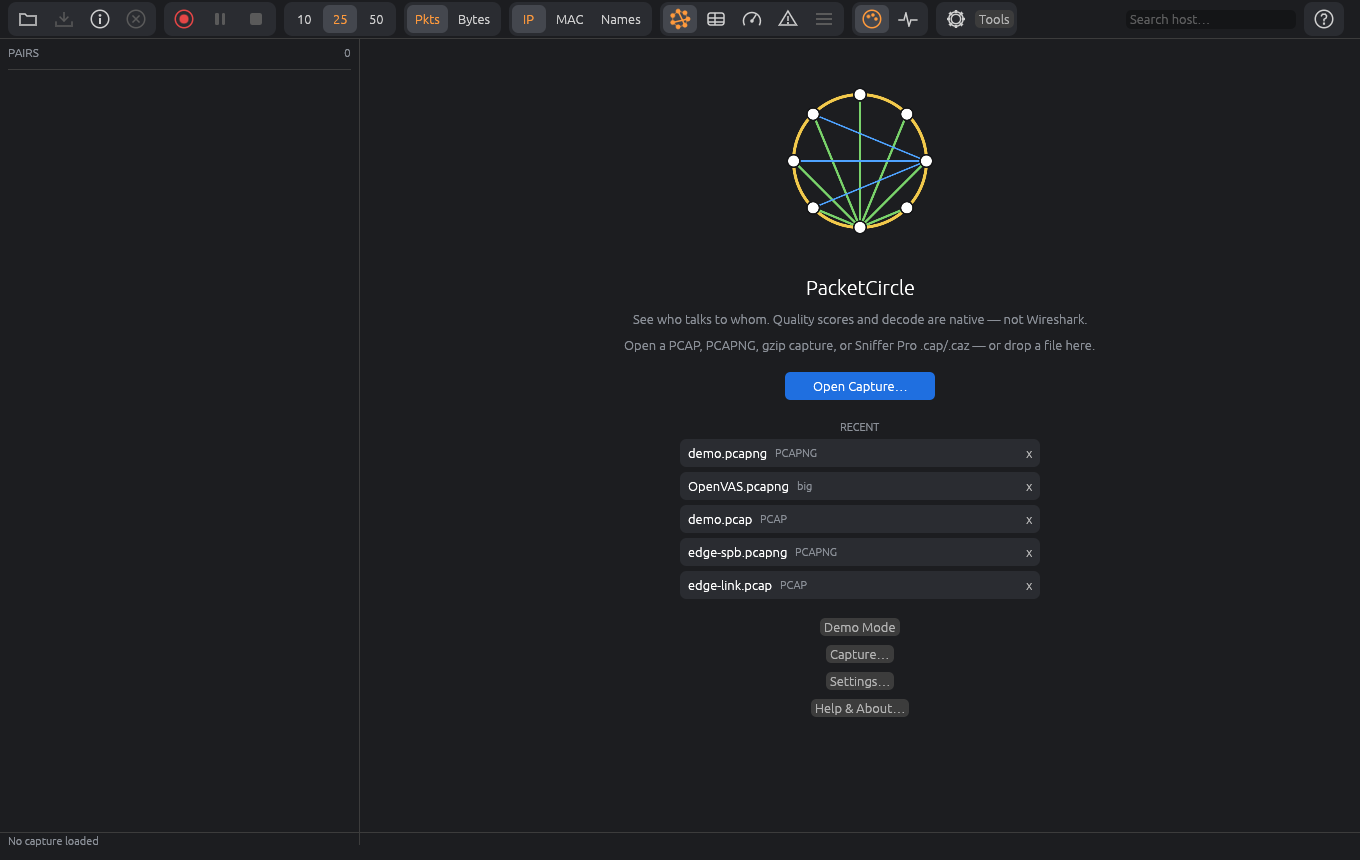
Start screen: Open Capture, Capture, Demo Mode, Settings and Help & About.
4. Main window layout
A toolbar across the top, the pairs list on the left, the active view on the right and a footer with packets, bytes, the file name and how long the analysis took (including Full or Light).
4.1 Toolbar
| Control | Role |
|---|---|
| Open | Open a capture |
| Save | Save the capture (whole or filtered, with a comment, as PCAPNG); asks whether to sanitize first |
| Info | Capture details (with SHA-256) — or About when nothing is open |
| Close | Close the capture and return to the start screen |
| Capture | Live capture from an interface, or PCAP over IP |
| Pause / Resume / Stop | Control a live capture or a replay |
| Circle · Conversations · Gauges · Expert Alerts | Switch the main view |
| Decode | Open the Decode window |
| Colour by Protocol / Quality | Colour the lines by protocol or by native TCP session quality |
| Search host… | Highlight a host on the Circle |
| Settings · Help | Settings window and the offline manual |
The Tools menu holds Demo Mode, Replay at original speed, Decode, Compare Conversations…, Capture Details…, Generate Report… and Sanitize Capture….
4.2 Pairs list and protocol legend
One row per conversation, mirroring the Circle. Selecting a row highlights the matching line on the Circle; hovering lights the chord and dims the others. Right-click a row for the same menu as on the Mac: filters, direction, restart capture, Wireshark, Follow, Compare, Save session. The arrow in a row chooses the direction. The protocol legend sits under the list in two columns of colour swatches; click a protocol to solo it.
5. Circle view
Hosts sit on a ring as hexagons; every conversation is a line whose colour follows the protocol or the TCP quality, and whose thickness follows the traffic volume (1–10 px). One-way conversations are a dotted arrow; conversations with several protocols are drawn as coloured dashes.
| Gesture | Effect |
|---|---|
| Scroll / pinch | Zoom |
| Drag | Pan |
| Click a line | Select the conversation and open its details |
| Click a host | Select that host’s busiest conversation |
| Right-click a line or host | Decode, Follow TCP Stream, copy Wireshark / BPF filter, capture only this, Hide / Focus |
Layouts: Hosts, Services (hosts linked to the services they use) and the infrastructure Map (Core / Distribution / Access learned from STP, CDP, LLDP, OSPF, BGP, EIGRP, IS-IS, RIP and ARP; cards can be dragged). Fit, zoom and pan controls sit on the canvas. Packets / Bytes and IP / MAC switches change what is measured and how hosts are paired.
Left of the Circle: Expert Alerts chips (App / L4+ / L3 / DLC) and the conversation quality chips (Excellent … Poor, with counts). Click a chip to filter. A hint bar offers Focus / Hide / Show only after a filter, and Full analysis of this host after a Light analysis.
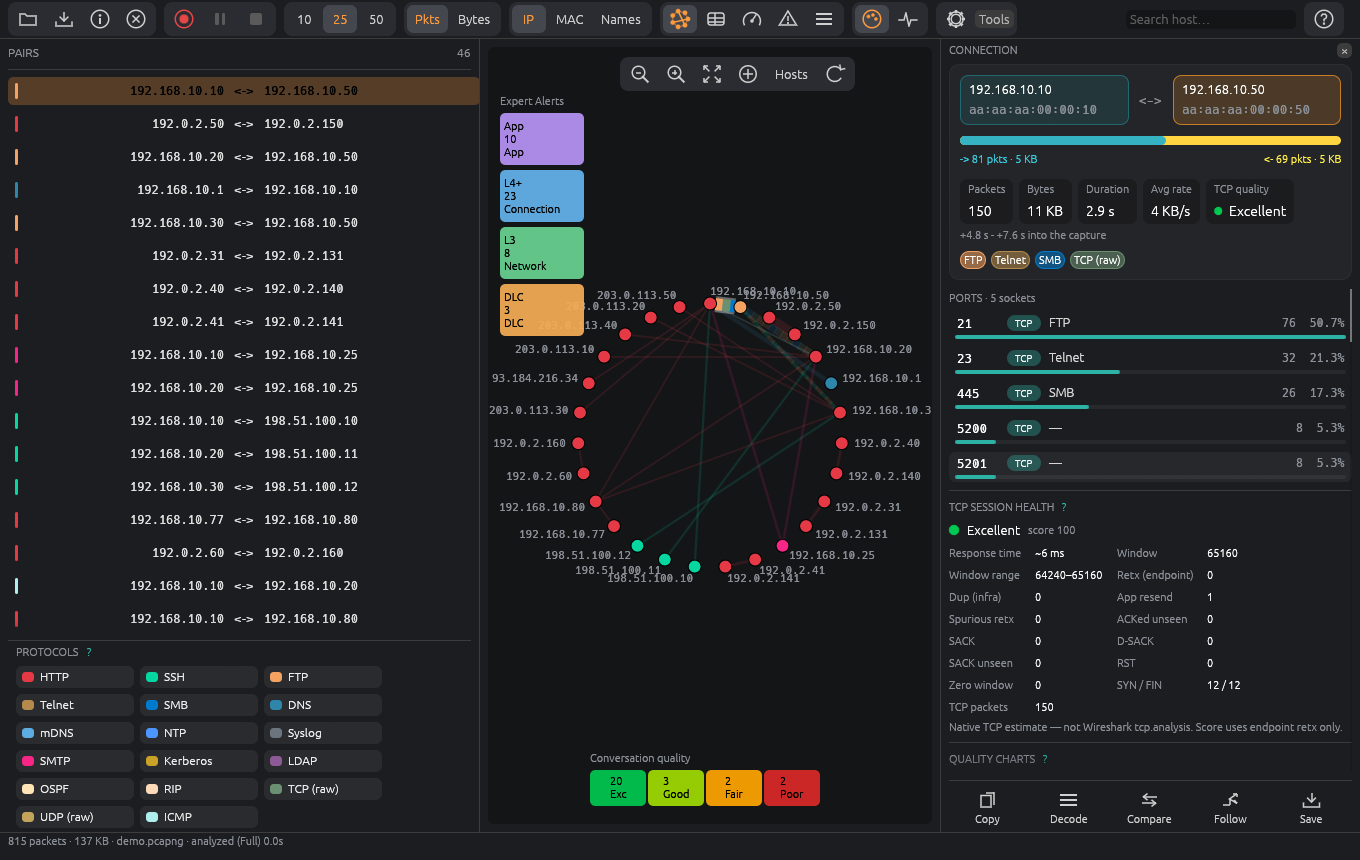
Circle with the Expert Alerts strip (App / L4+ / L3 / DLC), the conversation-quality chips, the protocol legend and the connection pane.
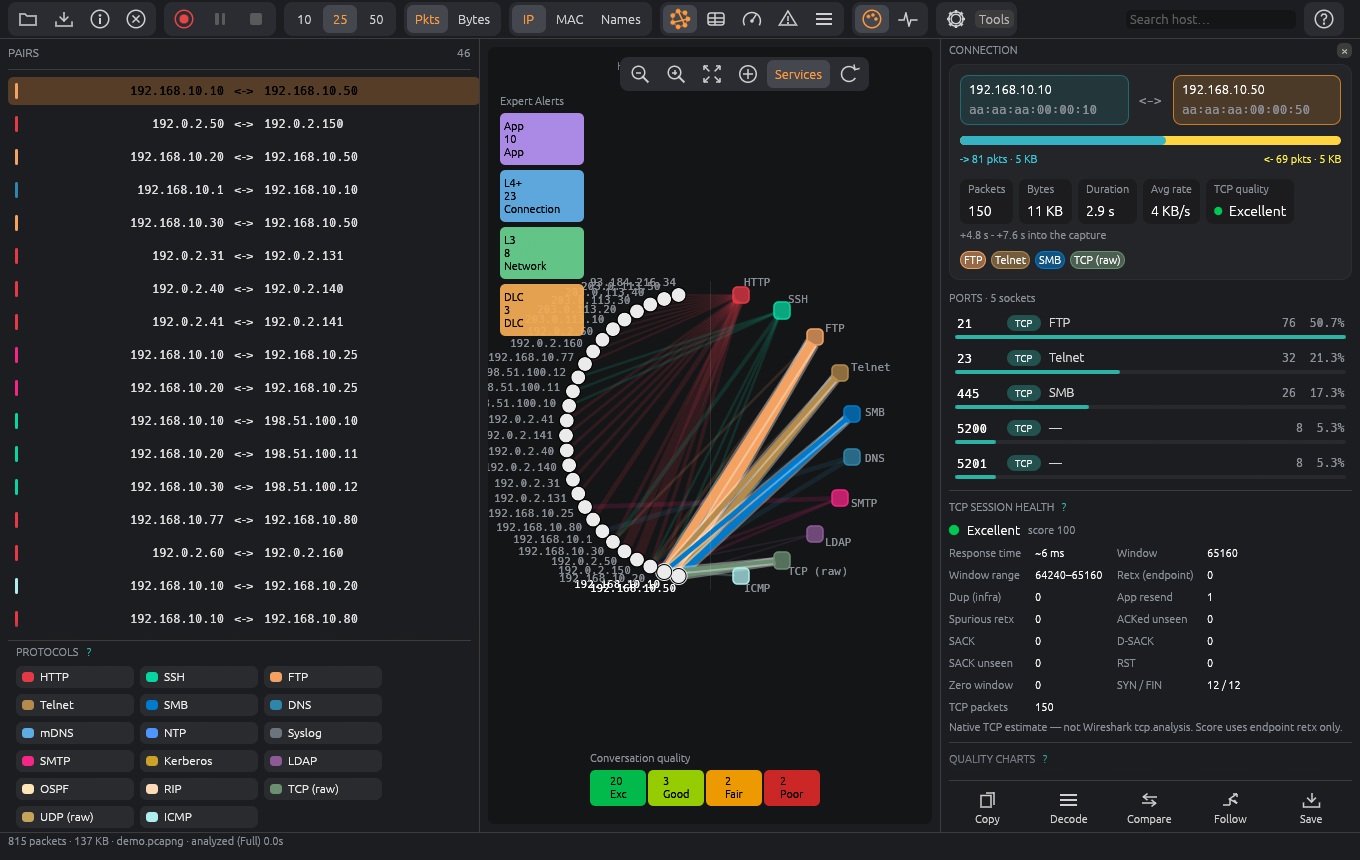
Services layout: hosts linked to the services they use.
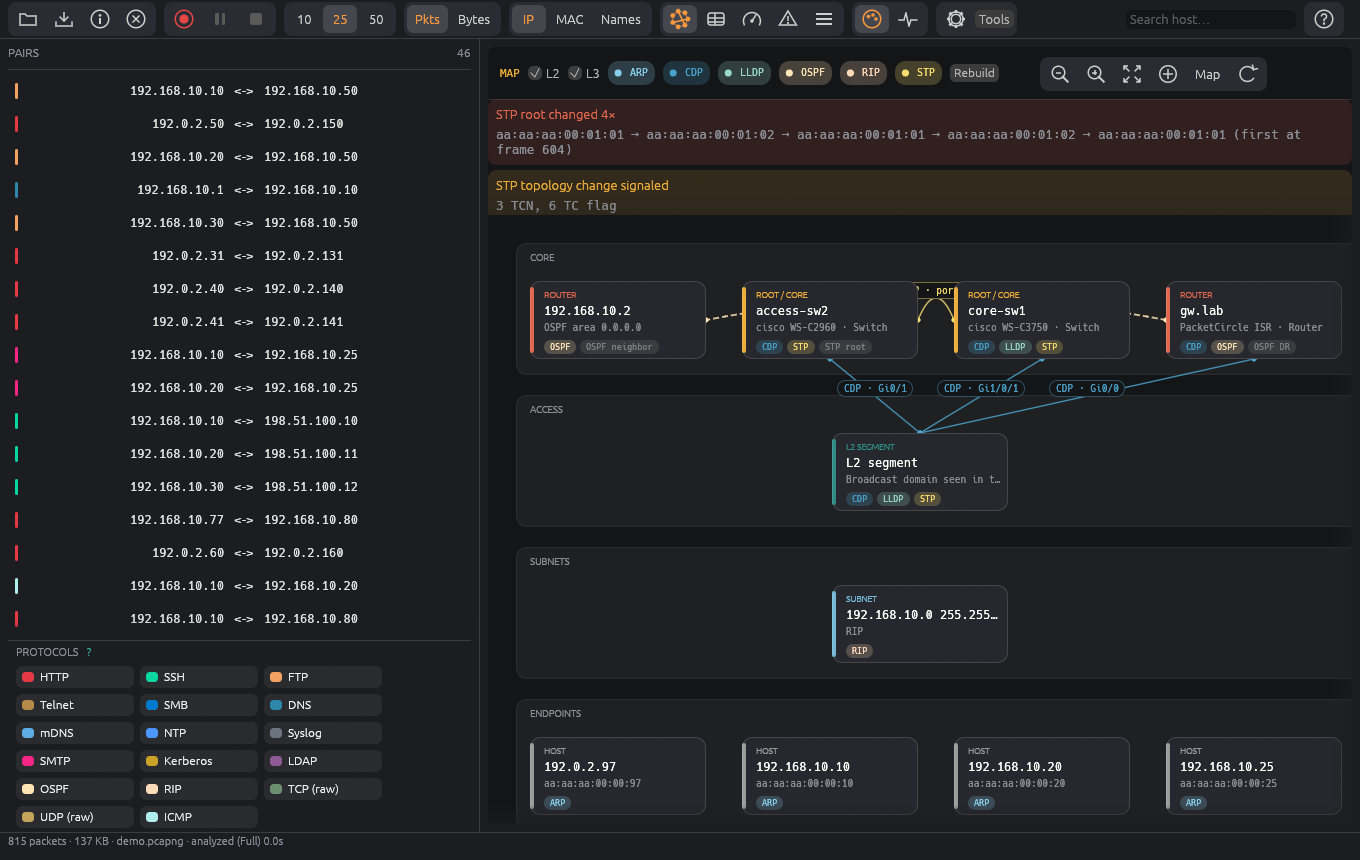
Infrastructure Map with STP root-change and topology-change alerts above the Core / Access / Subnets / Endpoints bands.
6. Conversation details
Selecting a conversation opens the details pane: a header with endpoint blocks (name, address, MAC, port), stat chips, the direction split bar and protocol pills, then:
| Section | Contents |
|---|---|
| Ports | Services with their share of traffic; click one to scope everything to that socket |
| TCP session health | Grade (Excellent / Good / Fair / Poor), score and 15 counters: retransmits, resets, zero windows, response time … — “native TCP estimate, not Wireshark tcp.analysis” |
| Initial options | MSS, window scale, SACK, timestamps from the handshake |
| Quality charts | ACK round trip (median / min / p95 / max), packet size, inter-arrival time, bytes, receive windows |
| Expert findings | The findings of this socket, with an explanation |
| TLS | SNI, certificate, problems; TLS alerts shown as cleartext or encrypted |
| Application messages | Drawn as a two-lifeline sequence diagram; identical neighbours collapse to ×N |
| TCP flow | The client / server exchange as a ping-pong diagram |
Actions: copy the Wireshark or BPF filter for the pair (narrowed to tcp port / udp port for a socket), Decode, Follow TCP Stream, Send to Wireshark, Compare, Save session.
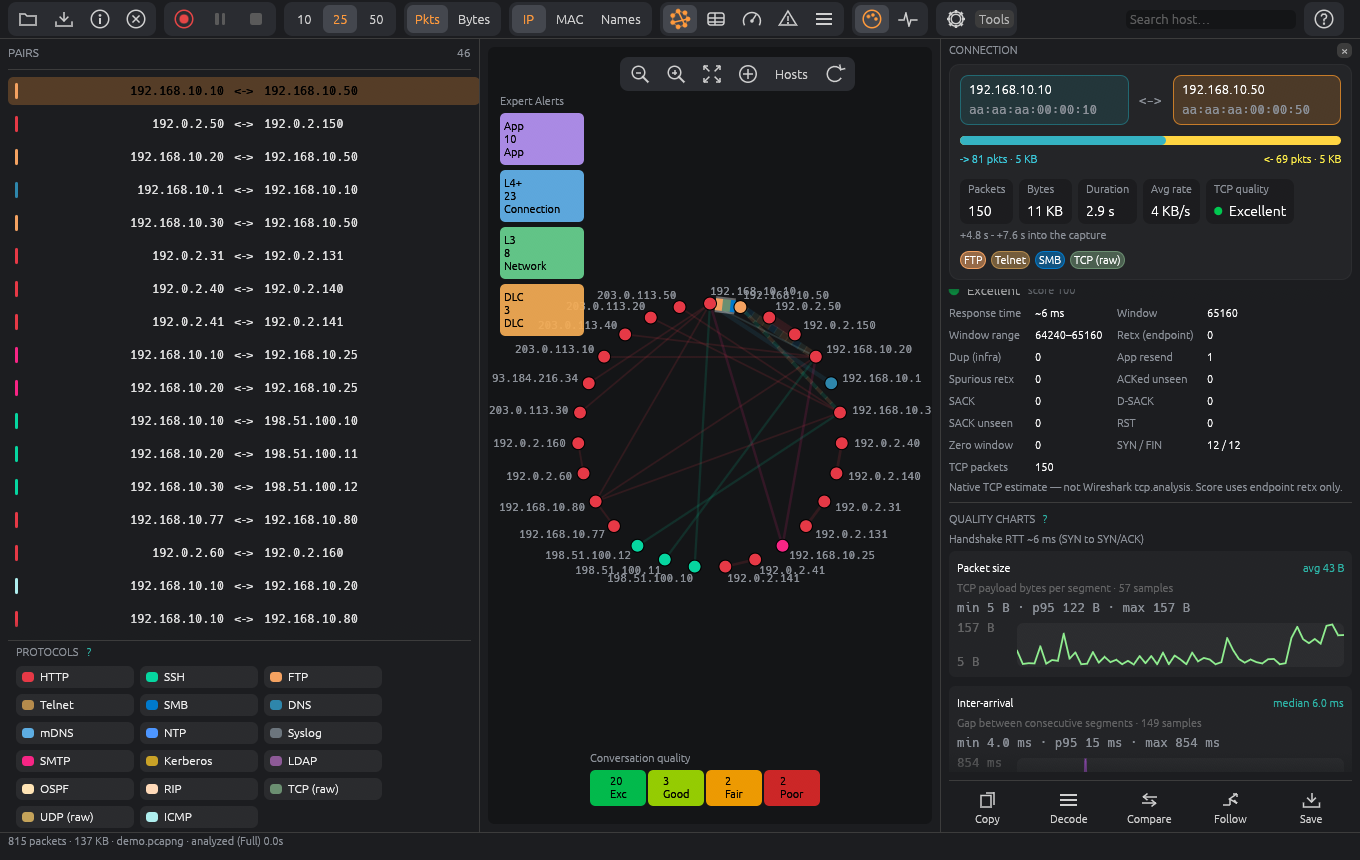
Connection pane: header with endpoint blocks, stat chips and ports, then TCP session health and the first quality charts.
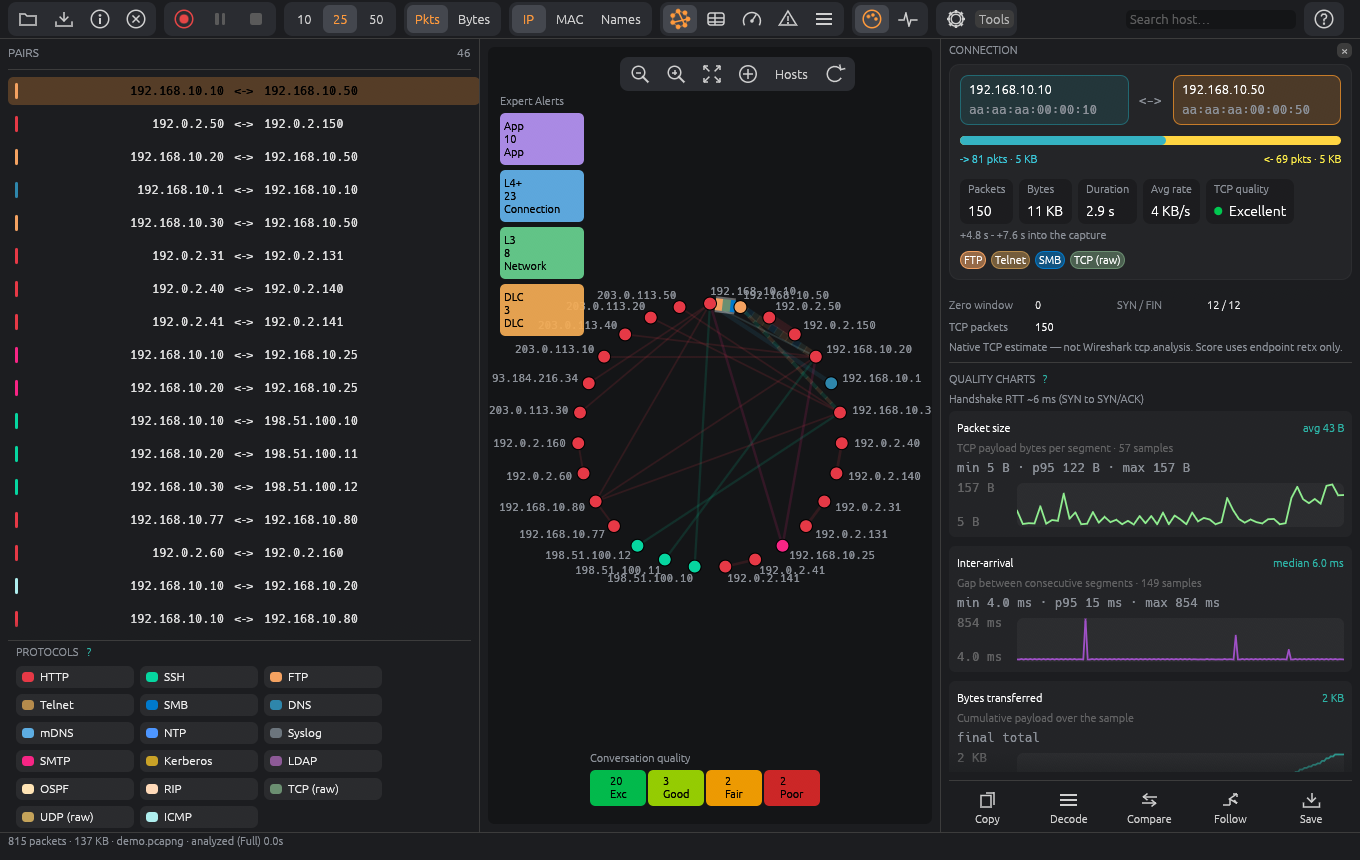
Quality charts: packet size and inter-arrival time per segment, bytes transferred.
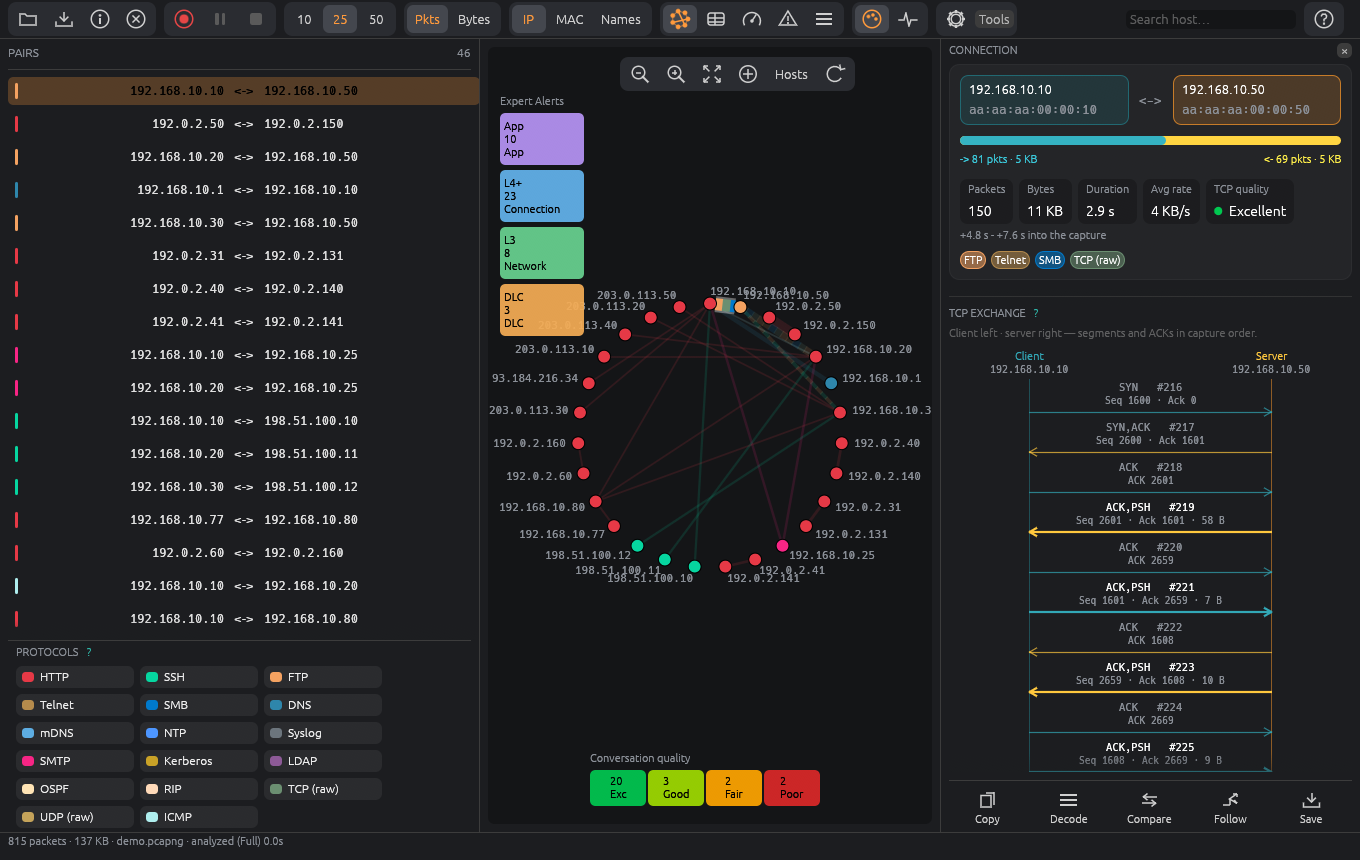
The TCP exchange as a client / server sequence diagram.
7. Conversations table
Every conversation in a sortable, virtualized table — addresses, ports, packets, bytes, protocol, quality grade and score, issue counters, window and RTT columns. Only the direction you click is highlighted.
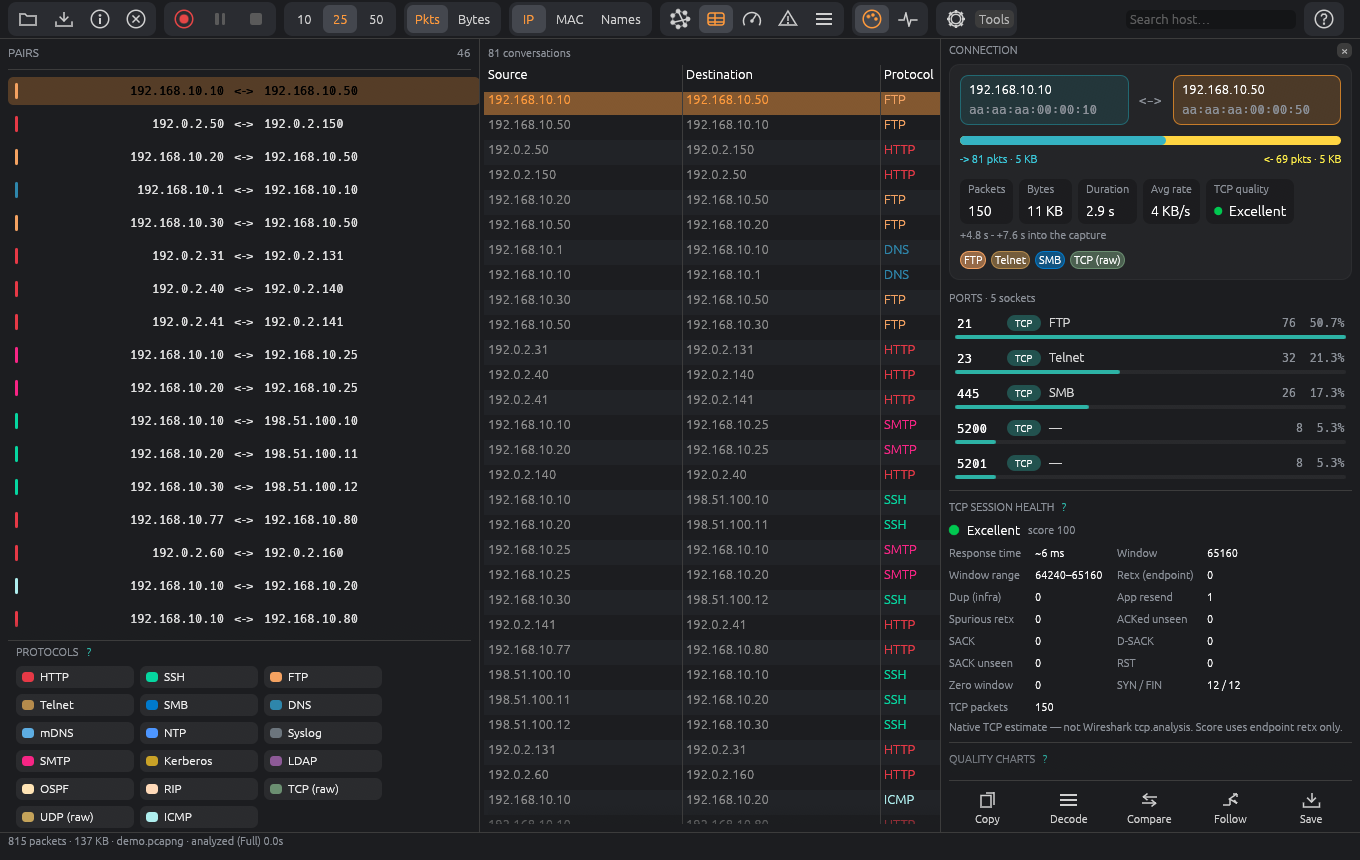
Conversations table.
8. Expert Alerts
Every finding, grouped by OSI band, with the conversations that raised it. Tiles for the four bands (Link, Network, Transport, Application) and All show counters that include notes and filter the list; click a finding to jump to its conversation. Right-click a tile for the alert list: select the conversation, hide that finding for this conversation, or suppress the alert type (re-enable under Settings → Expert). Right-click a quality grade to list those conversations and select one.
Scan detector. Half-open SYN, service, FIN, Christmas-tree, NULL, ACK, UDP and User-Agent scans are raised as warnings on the connection band (L4+); an ARP sweep is raised on the network band (L3). Nmap is named when the time window and the volume match. The demo capture contains one Nmap SYN scan (ports 22, 80, 443, 8080) and one Christmas-tree scan (FIN+PSH+URG on ports 21, 23, 25, 110, 143).
Some findings are informational — present in the capture without proving a connectivity or performance problem (SPAN duplicates, traceroute TTL = 1, HTTP 404, encrypted TLS alerts). Giant / jumbo frame counts the bytes actually stored in the capture: a larger PCAP original length from a snaplen cut or Linux GRO does not count, so a 1514-byte frame stays under the 1518 threshold.
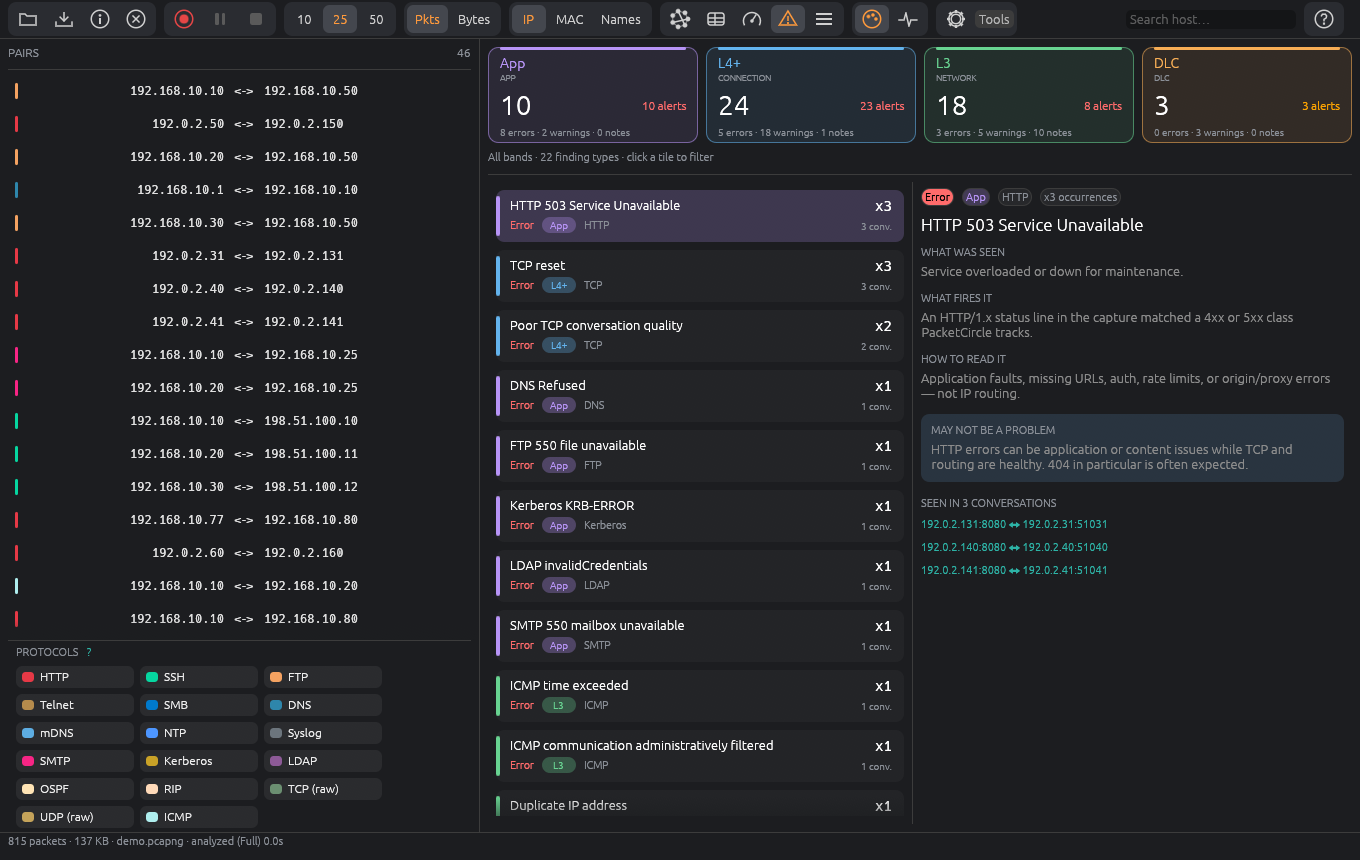
Expert Alerts: band tiles with counters, the finding list and the explanation of the selected finding.
9. Gauges and the quality timeline
Totals and averages, rate gauges for packets, bytes and errors per second (instantaneous with live sparklines while capturing), top talkers, the protocol mix and a TCP health panel (RTT median / p95, grades, receive-window buckets, retransmissions, resets, SACK). Hosts, protocols and grades are clickable and apply the matching Circle filter. Problem conversations sit beside the quality timeline: every timed TCP conversation by grade over a gap-collapsed time axis. Click the timeline to pick a time slice — filter the analysis to it, show it in Decode or open it in Wireshark.
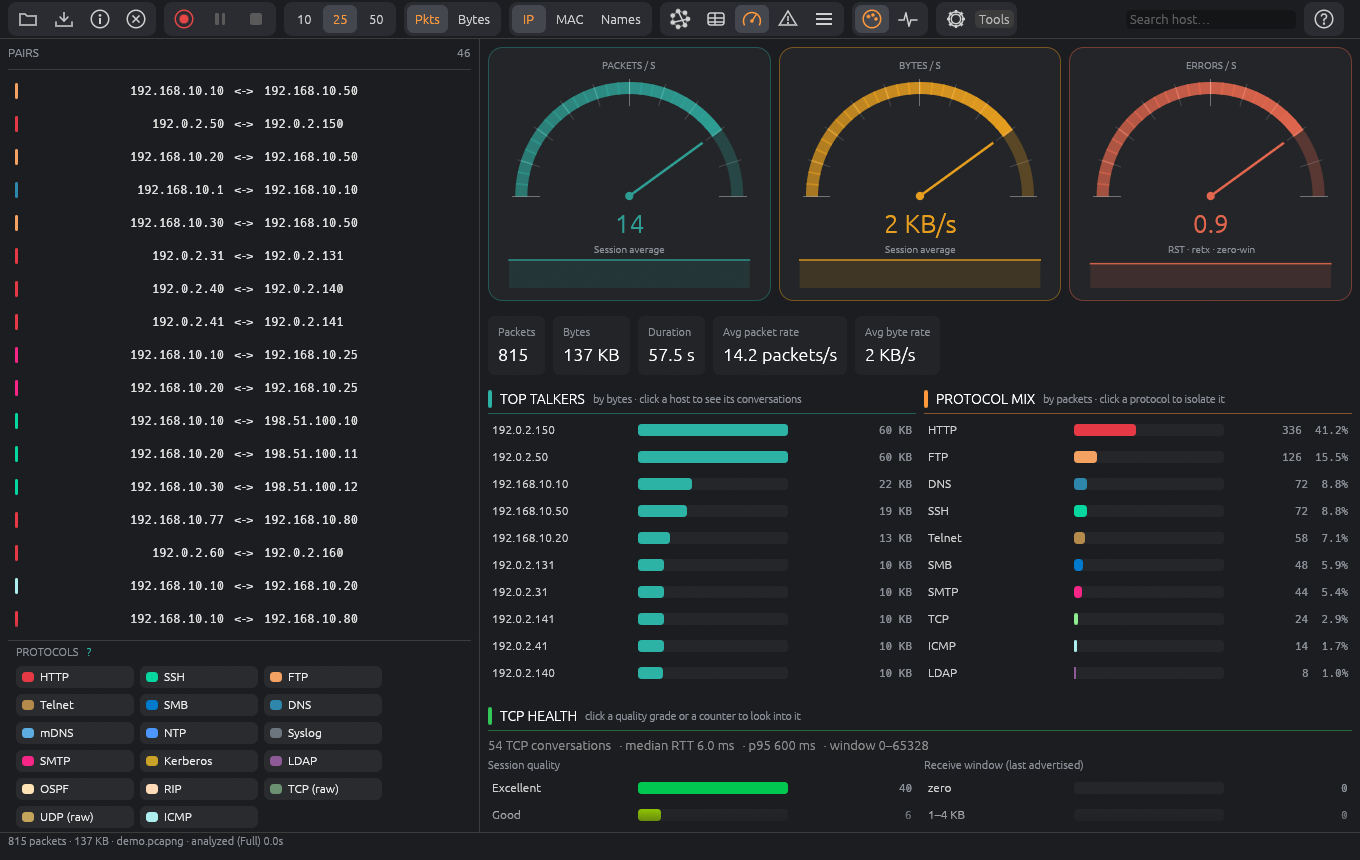
Gauges: rate gauges, top talkers, protocol mix and TCP health.
10. Decode and Follow TCP Stream
Decode opens in its own window and shows the selected conversation (or one port), wherever it sits in the file, or the whole capture. It has a Wireshark-style display filter (tcp, tcp.port == 80, ip.addr == 10.0.0.1, http and tcp.flags.syn, with contains, and / or / not) with autocomplete from the fields PacketCircle actually decodes; unknown names turn the filter red instead of silently matching nothing. Also: text / hex search, protocol chips that fold away, selectable columns, the packet list, the coloured protocol tree and a synced hex dump. tcp.analysis.* covers PacketCircle’s own per-frame experts (retransmission, spurious retransmission, ACKed unseen, zero window, duplicate ACK).
Follow TCP Stream reassembles one flow: entire conversation, client → server or server → client, as ASCII, hex or hex + ASCII, with Copy and Open in Wireshark.
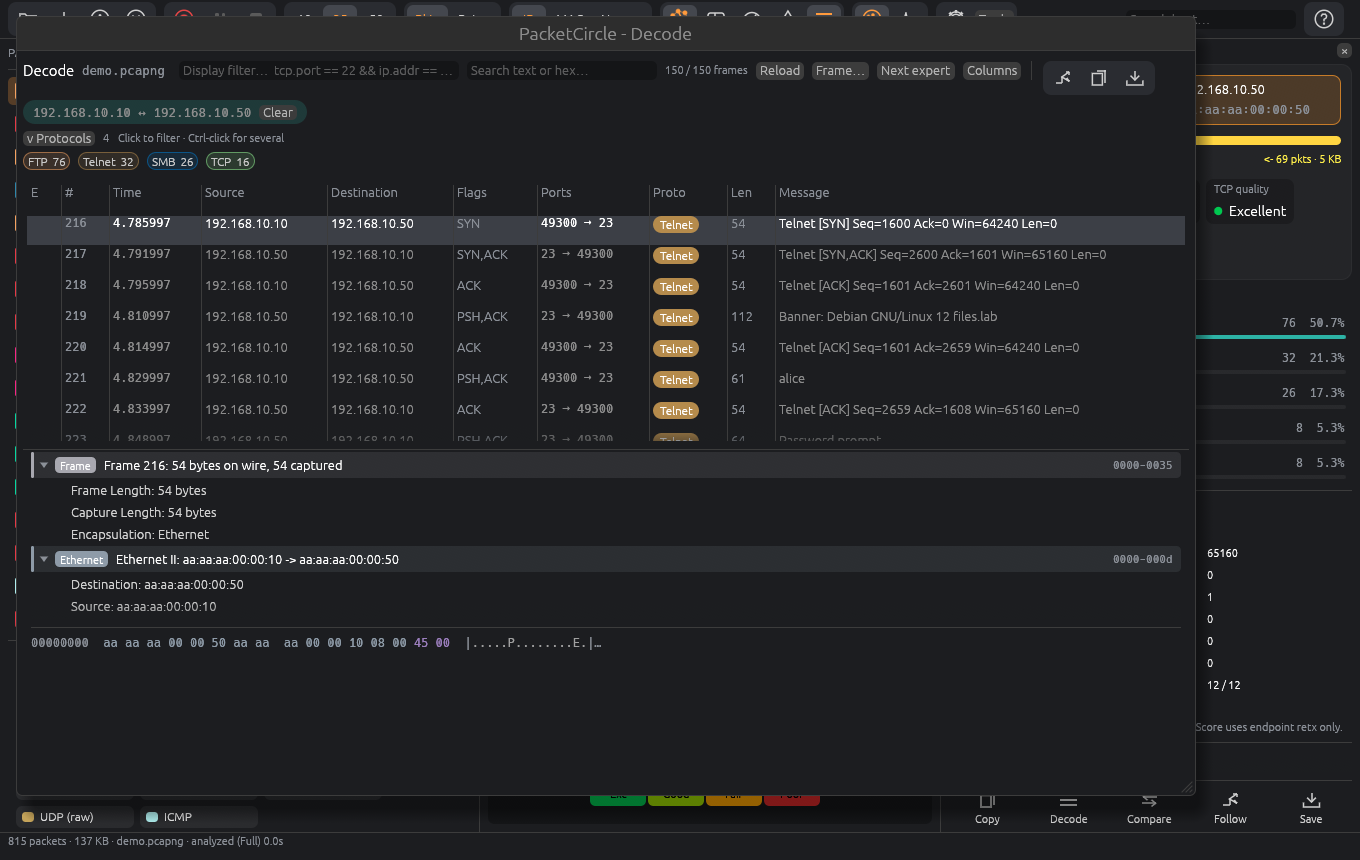
Decode window scoped to one conversation: display filter, packet list, protocol tree and hex.
11. Live capture and PCAP over IP
Capture… lists the interfaces with live activity, takes a BPF filter and promiscuous / hide-idle options, and records into a growing file that is analyzed as it grows. Pause, Resume and Stop are in the toolbar. After Stop the recording is analyzed in full and stays open; Save a copy… writes it where you want it.
Capturing needs permission once:
sh packetcircle-*-linux-x86_64.run --capture   # at install time
packetcircle-capture enable                            # later (also: disable | status)
Both run setcap cap_net_raw,cap_net_admin=eip on the installed program (needs sudo once); alternatively start PacketCircle with sudo. PCAP over IP connects out to a remote classic-PCAP stream (TCP@host:57012, the same convention as Wireshark -k -i TCP@host:port, for example from pcapoverip or PolarProxy) and needs no special permission. Right-click a conversation or host → capture only this restarts the capture with a matching BPF filter.
On Windows live capture uses Npcap instead of setcap. Install Npcap from npcap.com as administrator when you want to capture; opening and analyzing capture files works without it.
12. Large captures
Captures of 200 MB or more ask for Light or Full analysis and show an estimate for each. Progress lists the conversations, applications and frames found so far, with Stop. After a Light analysis you can run a Full analysis of one searched host, or of a time slice picked on the quality timeline. For reference: a 600 MB capture with 1.2 million frames is analyzed in about 5 seconds. Automation: PC_ANALYSIS_DEPTH=light|full answers the question in advance.
13. Tools
| Tool | What it does |
|---|---|
| Compare Conversations… | Side A (reference) against side B: link, IP, TCP setup, RTT, certificates, application samples and findings; the worse value is coloured (Better / Worse / Much worse); export to PDF |
| Generate Report… | Summary, Detailed or Annotated PDF with cover page, contents, charts, port / TCP analysis and Expert messages |
| Sanitize Capture… | Streaming scrub (cleartext payload / all payload / payload + IP and MAC anonymization) with checksum fix-ups, written as PCAPNG |
| Capture Details… | File summary with SHA-256 |
| Save | Whole or filtered capture, with a comment, as PCAPNG; offers to sanitize first |
| Demo Mode / Replay | Play the bundled sample capture back as a one-minute live demo; replay an open capture at its original timing |
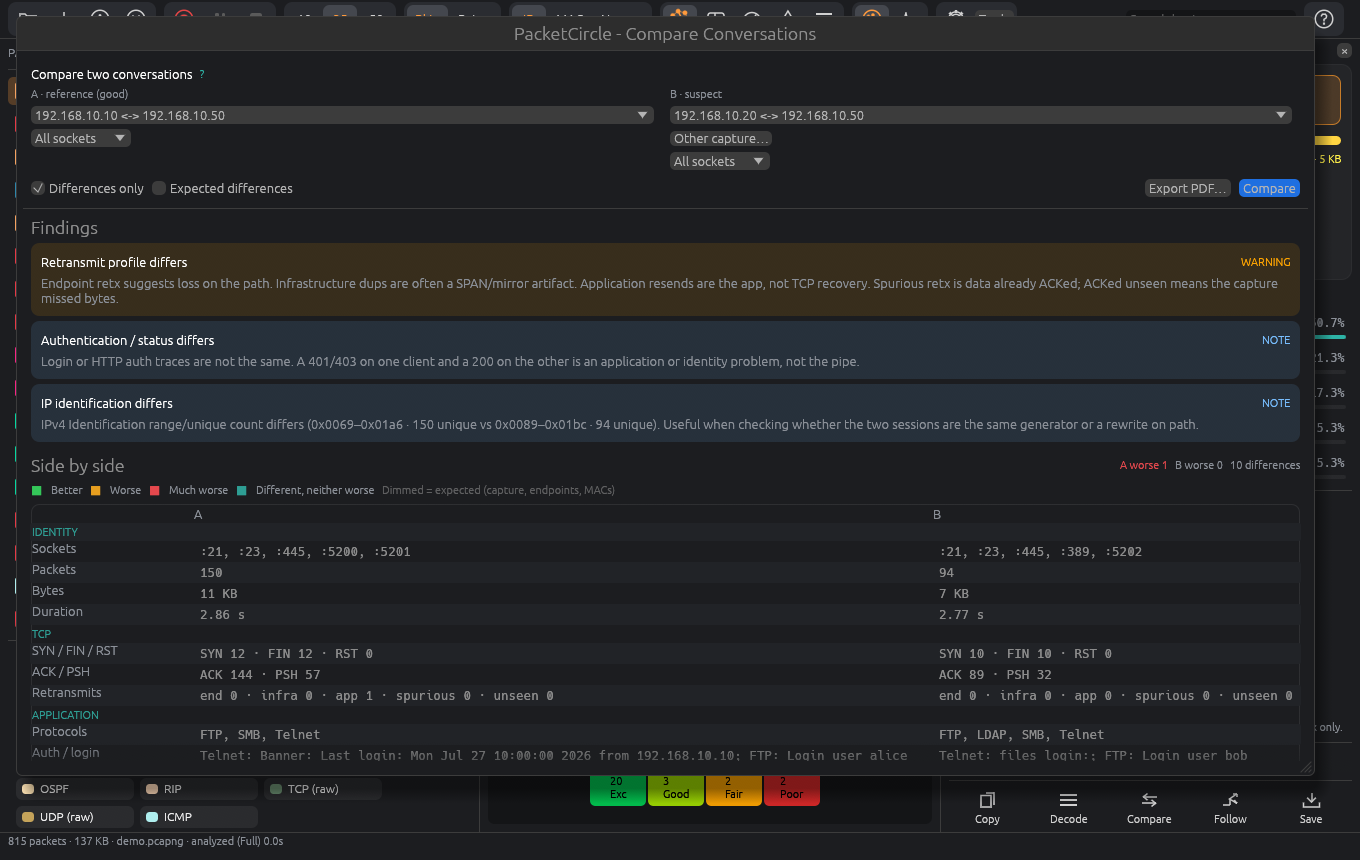
Compare Conversations: findings and the side-by-side table, with the worse value coloured.
14. Settings and Help
The gear icon opens Settings: Appearance (Dark, Light or System; the Circle and the Infrastructure Map stay black), host names, Circle and details display, TCP quality strictness (Lenient / Balanced / Strict), Expert thresholds (ARP storm, unanswered ARP, giant-frame size, retransmit % and zero-window count), suppressed alert types, Sanitize and Report defaults, Decode font and size, frame limit and protocol colours. They are saved to ~/.config/PacketCircle/settings.json. The Help button opens the offline manual and the ? topics.
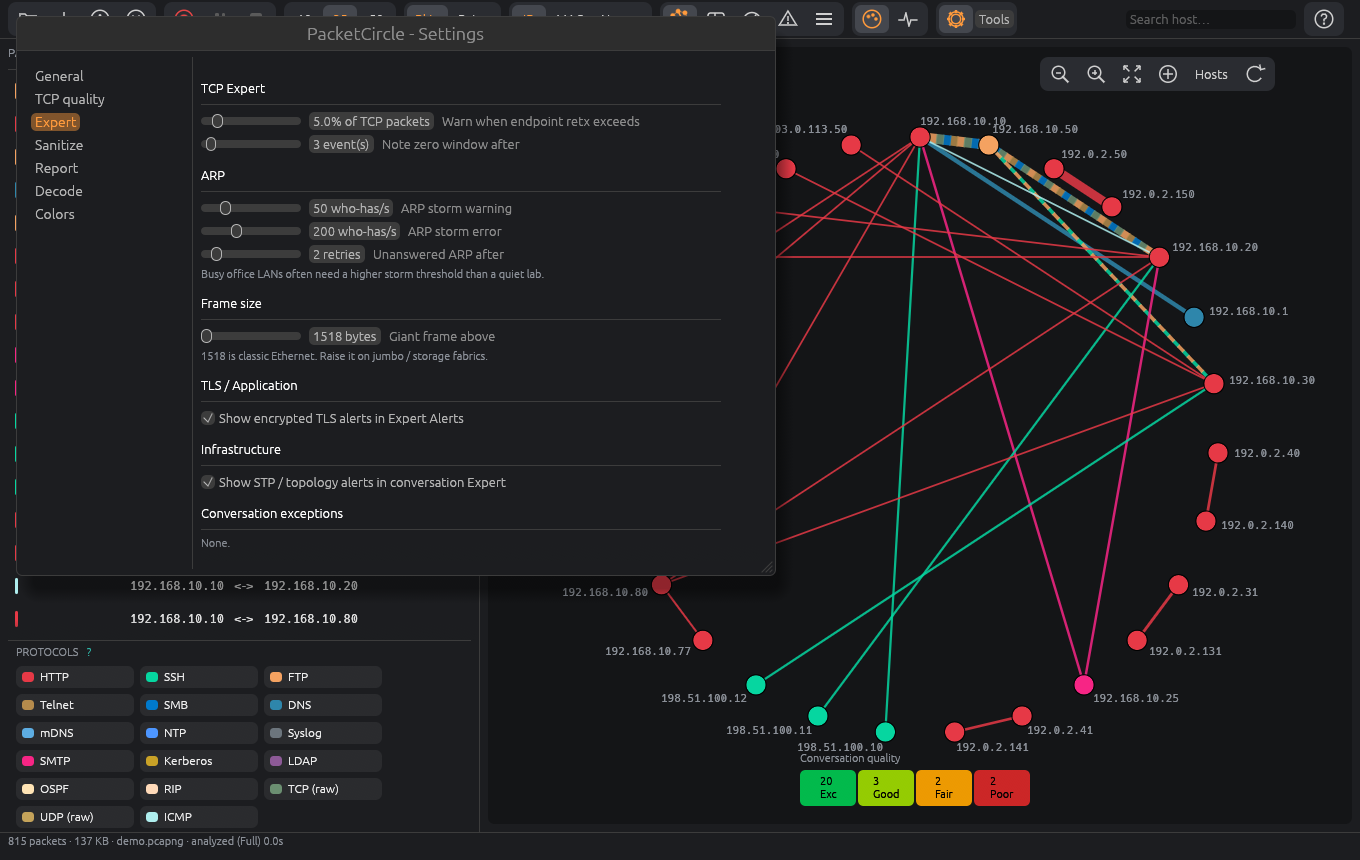
Settings window.
Settings → Appearance switches between Dark, Light and System (follow the desktop theme). The Circle and the Infrastructure Map stay black in both; the text, icons, lists and charts around them change.
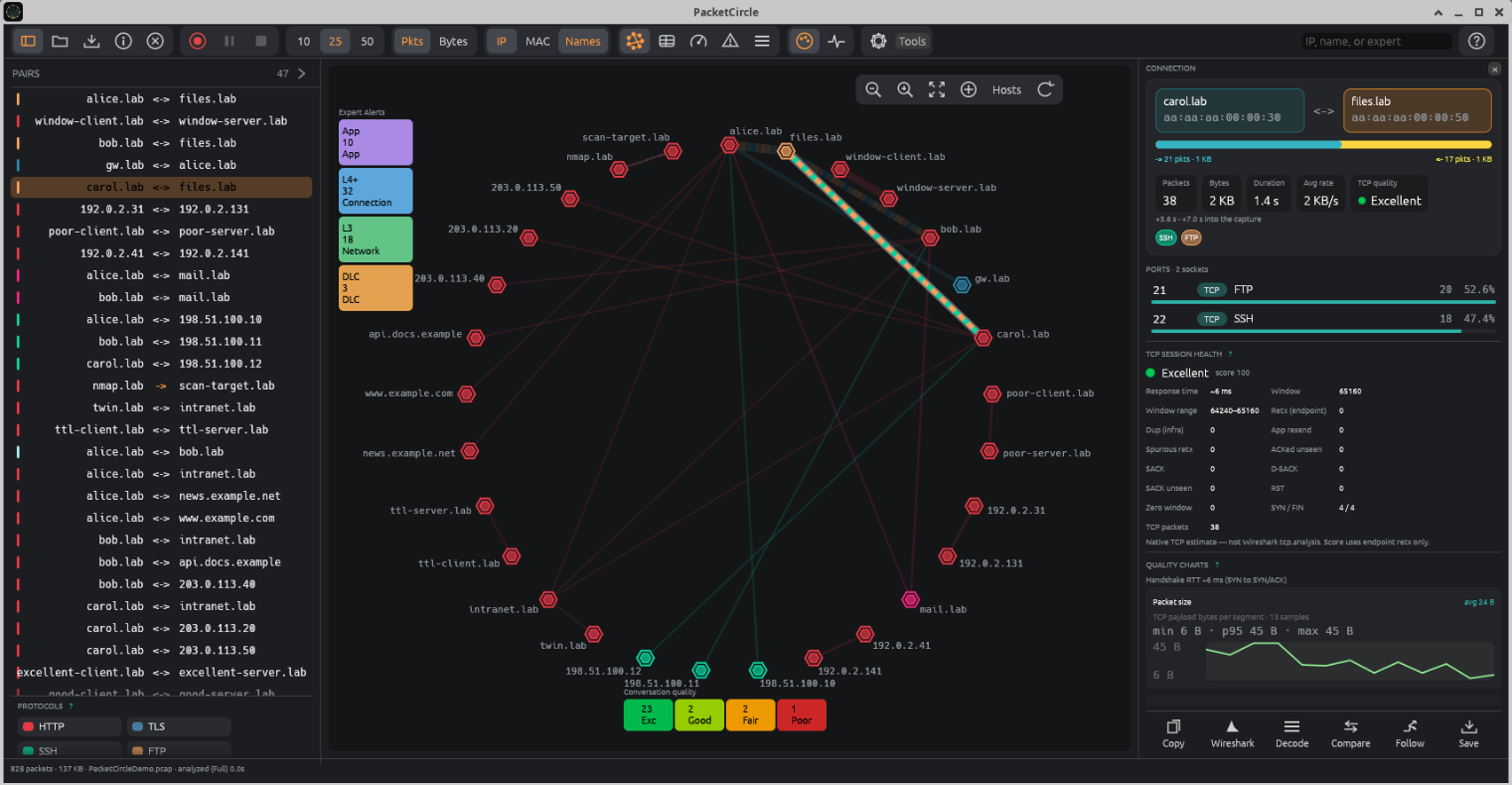
Dark appearance (default).
Light appearance.
15. Wireshark integration
Send to Wireshark — from Decode, Follow TCP Stream, a time slice or the conversation details — opens the capture (or the filtered view) in a locally installed Wireshark and puts the equivalent display filter on the clipboard. It is disabled if Wireshark is not installed.
16. Differences from the Mac app
The Linux and Windows apps cover everything the Mac app does except: Add to / Invert Selection (one selection at a time), comparing with a second capture file, the report’s chord diagram and logo image, and the Sniffer / Wireshark-plugin integration.
17. Workflows
A. First look at a capture
Open the file; on the Circle colour by Quality and look for orange / red lines; open Expert Alerts for the list of findings; click a line for the details.
B. Diagnose a bad TCP session
Gauges → Problem conversations (or the quality timeline) → click a conversation → read TCP session health and the charts → Follow TCP Stream or Decode for the frames → Save session to keep just that conversation.
C. Live triage on the wire
Capture… → pick an interface, optionally a BPF filter → Start. Right-click a conversation → capture only this to narrow it; Stop to analyze the full recording; Save a copy.
D. Share a capture safely
Save → answer sanitize (payload, or payload + IP / MAC) → send the PCAPNG. The original stays untouched.
18. Troubleshooting
| Symptom | What to do |
|---|---|
| No window / “no suitable adapter” | No GPU driver: install mesa-vulkan-drivers libegl1. In a VM without 3D acceleration start with WGPU_BACKEND=gl. Over SSH use a desktop session. |
| Open… does nothing | Install xdg-desktop-portal xdg-desktop-portal-gtk, or start with the file as an argument, or drop a file on the window. |
| Capture shows no interfaces / permission denied | Run packetcircle-capture enable once (§11), or start with sudo. |
| Installer says “glibc too old” | Use a newer distribution (see §2). |